
- Cybersecurity
- Network Security
- Network Engineering
what is wireshark and why it is used ? (Part 1)
By Pivithuru Milan Perera6 min read
When troubleshooting a network, one of the most important things is being able to see what is actually happening on the network.
- A user might say, "The internet is slow."
- A server administrator might say, "The server is working normally."
- A network engineer might say, "There is no problem with the firewall."
But what is really happening between the devices? This is where Wireshark becomes extremely useful.
Wireshark is a network protocol analyzer that allows us to capture and inspect network packets as they travel between devices. Instead of simply looking at whether a connection works or fails, Wireshark allows us to look inside the communication and understand what is happening at the packet level.
In this article, we will look at what Wireshark is, how it works, why network engineers use it, and some basic filters that can make packet analysis much easier.
What Is Wireshark?
Wireshark is a free and open-source tool used to capture, analyze, and troubleshoot network traffic. In simple terms, Wireshark allows us to see packets moving through a network interface. Whenever we browse a website, send an email, connect to a server, resolve a domain name, or access a network service, our devices exchange packets.
For example, when we open: https://pivithuruperera.com
many different network activities can happen behind the scenes:
The computer may perform a DNS lookup to find the IP address of the website.
A TCP connection may be established.
A TLS session may be negotiated.
Data may then be exchanged between the client and server.
Wireshark can capture these packets and display information about each step.
A simple way to think about it
Think of network communication as sending thousands of envelopes between two offices. Without Wireshark, we may only know that the envelopes were sent and whether they arrived.
But with Wireshark, we can inspect information such as:
Where the packet came from
Where it is going
Which protocol is being used
Which port is involved
When the packet was sent
Whether packets were retransmitted
Whether the connection was established successfully
Whether there were errors or unusual delays
This makes Wireshark an extremely powerful troubleshooting tool.
What Is a Network Packet?
Before understanding Wireshark, it is useful to understand what a packet is.
Data transmitted across a network is divided into smaller units. Depending on the networking layer and protocol, these units may be referred to as frames, packets, segments, or datagrams. For example, an Ethernet frame can contain an IP packet, which can contain a TCP segment, which may contain application data.
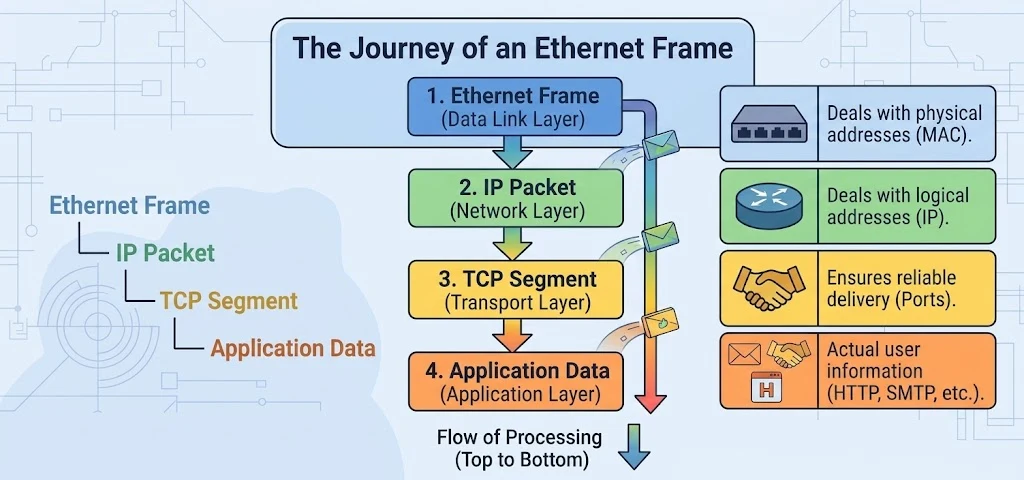
Wireshark allows us to inspect these different protocol layers.
How Does Wireshark Work?
Wireshark works by capturing traffic from a network interface. For example, your computer might have:
Ethernet
Wi-Fi
VPN
Loopback
When you start a capture, Wireshark listens on the selected interface and records the traffic that the interface can observe.
Example
Suppose your laptop is connected to a Wi-Fi network.
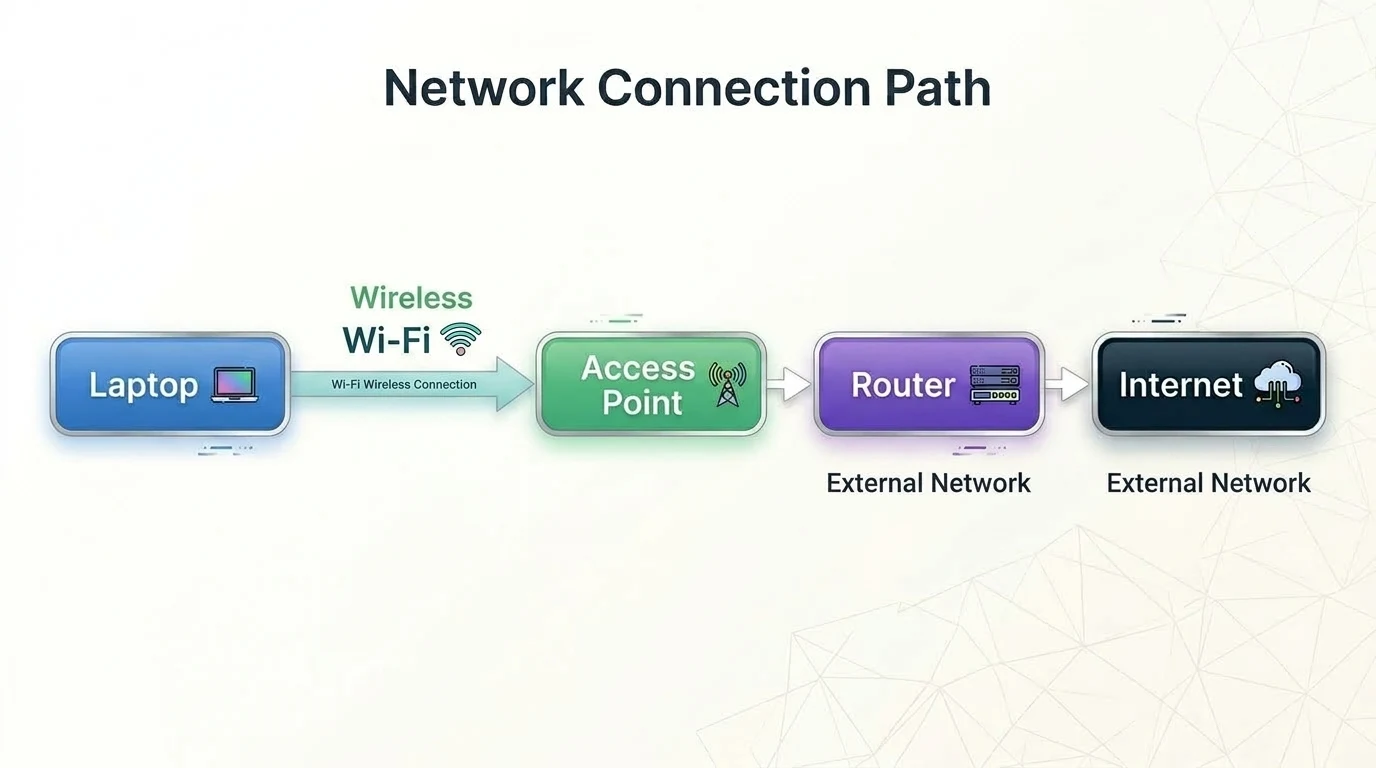
When you browse a website, packets are transmitted through the Wi-Fi interface.
Wireshark can capture those packets and display them in a readable format.
The Wireshark Interface
The main areas are generally:
1. Packet List Pane

The packet list shows captured packets in rows. This gives us a quick overview of the traffic. It typically includes information such as:
Packet number
Time
Source
Destination
Protocol
Packet length
Information
2. Packet Details Pane
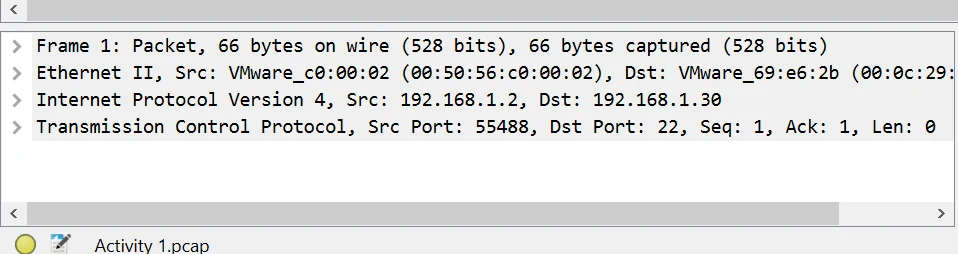
We can expand each section to inspect the fields inside it. This is one of the most useful features of Wireshark because we can move through the different protocol layers and understand exactly what is contained in the packet.
3. Packet Bytes Pane
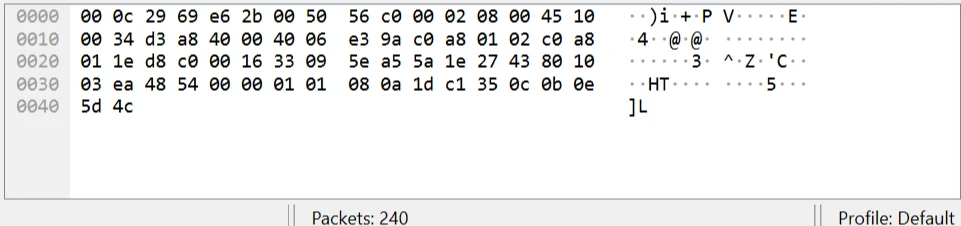
The bottom section usually displays the actual packet bytes in hexadecimal and ASCII format. Most beginners will not need to analyze the raw bytes frequently, but this information can be very useful for advanced troubleshooting and protocol analysis.
Why Is Wireshark Used?
Wireshark is mainly used to understand and troubleshoot network communication. There are many situations where it becomes useful.
1. Troubleshooting Network Problems
One of the biggest reasons network engineers use Wireshark is troubleshooting.
For example, imagine a user cannot connect to a server. There could be many possible causes:
DNS failure
Routing problem
Firewall blocking traffic
TCP connection failure
Server not responding
Packet loss
Incorrect configuration
Instead of guessing, Wireshark allows us to capture the traffic and see what actually happens.
For example:
Client ───── SYN ─────► Server
Client ◄──── SYN/ACK ── Server
Client ───── ACK ─────►
Server
This tells us that the TCP connection is being established.
But if we see:
Client ───── SYN ─────► Server
Client ───── SYN ─────► Server
Client ───── SYN ─────►
Server
and there is no response, that gives us a very different troubleshooting direction.
The server might be unreachable, a firewall might be dropping the packet, routing might be incorrect, or another network issue may exist.
2. Analyzing DNS Problems
DNS problems are very common in networks. Suppose a user can access a website using its IP address but cannot access it using the domain name.
Wireshark can help us determine whether DNS queries are being sent and whether responses are coming back. we can use "dns" as the filter for the capture traffic, that will filter DNS related traffic.
3. Troubleshooting TCP Connections
Wireshark is extremely useful for analyzing TCP. TCP uses mechanisms such as :
- SYN
- SYN/ACK
- ACK
- FIN
- RST
- Retransmissions
For example, to look for TCP SYN packets, we can use "tcp.flags.syn == 1" and to identify TCP reset packets, we can use "tcp.flags.reset == 1".
Part two of this series is coming soon. Subscribe to receive an instant email update when the next post is published. -> Pivithuru Perera News Letters
Keep reading
More articles
Explore other writeups on network security, firewalls, and practical engineering.

Reflecting on My BSc (Hons) in Information Technology Specializing in Computer Systems & Network Engineering at SLIIT (2021–2025)
When I look back at my journey starting from July 2021 all the way to completing my final requirements, enrolling in the BSc (Hons) in Information Technology specializing in Computer Systems and Network Engineering (CSNE) at the Sri Lanka Institute of Information Technology (SLIIT) was one of the most defining choices of my professional life.
The Hidden Vulnerabilities of Public Wi-Fi: Why Open Networks Are a Trap
Ever logged onto a coffee shop's "free" Wi-Fi and did your office work while enjoying a good cup of coffee freely and happily, did you feel completely safe on free Wi-Fi? Think again. Behind that open connection lies a silent playground for hackers where passwords don't even need to be cracked, because your active sessions are stolen in plain sight. Discover why multi-factor authentication isn't enough and what you can do right now to protect your data before your next public login. Read the full post to uncover the hidden traps of unsecured networks!
Urgent Security Alert: Active Exploitation of SonicWall SMA1000 Vulnerabilities Threatens Enterprise Infrastructures
Enterprise environments are facing significant security threats after the confirmation that ransomware operators are actively exploiting two high-severity zero-day vulnerabilities affecting SonicWall Secure Mobile Access (SMA) 1000 appliances.
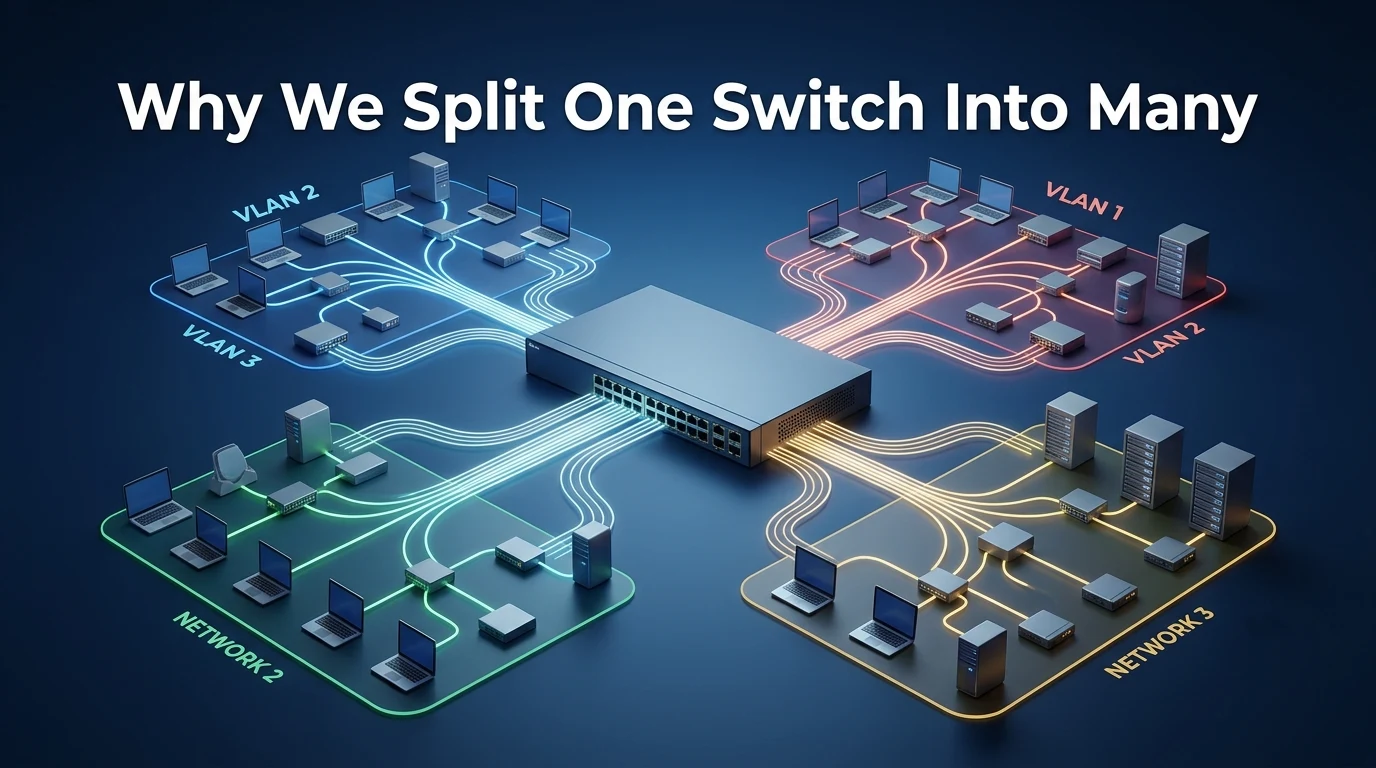
VLAN Basics: Why We Split One Switch Into Many
Tags, ports, PVIDs, and trunks explained from the ground up, starting with the problem VLANs actually solve